> ## Documentation Index
> Fetch the complete documentation index at: https://docs.omi.me/llms.txt
> Use this file to discover all available pages before exploring further.
# Omi Setup
> Get started with your Omi device
 ## Quick Setup
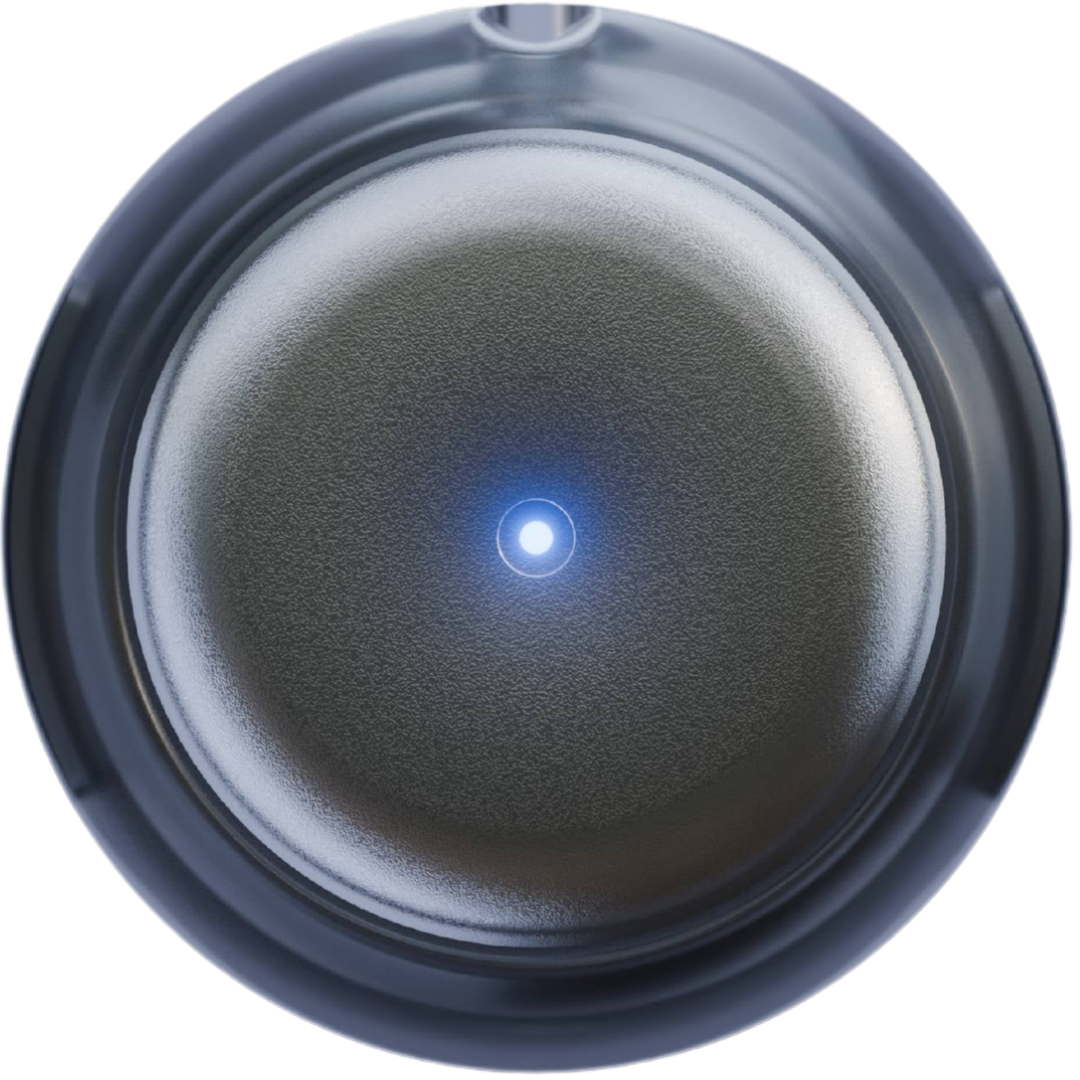
Make sure your Omi device is charged. When you switch it on, there should be a light indicator.
* Press the button once to turn on the device
* Look for the LED light to confirm it's powered on (blue if connected, red if not yet paired)
Download the official Omi app from your device's app store:
Download for iOS
Download for Android
You can also search for "**Omi AI**" in your app store.
1. Open the Omi app after downloading
2. Follow the in-app instructions to pair your device
3. Wait for the Bluetooth connection to establish
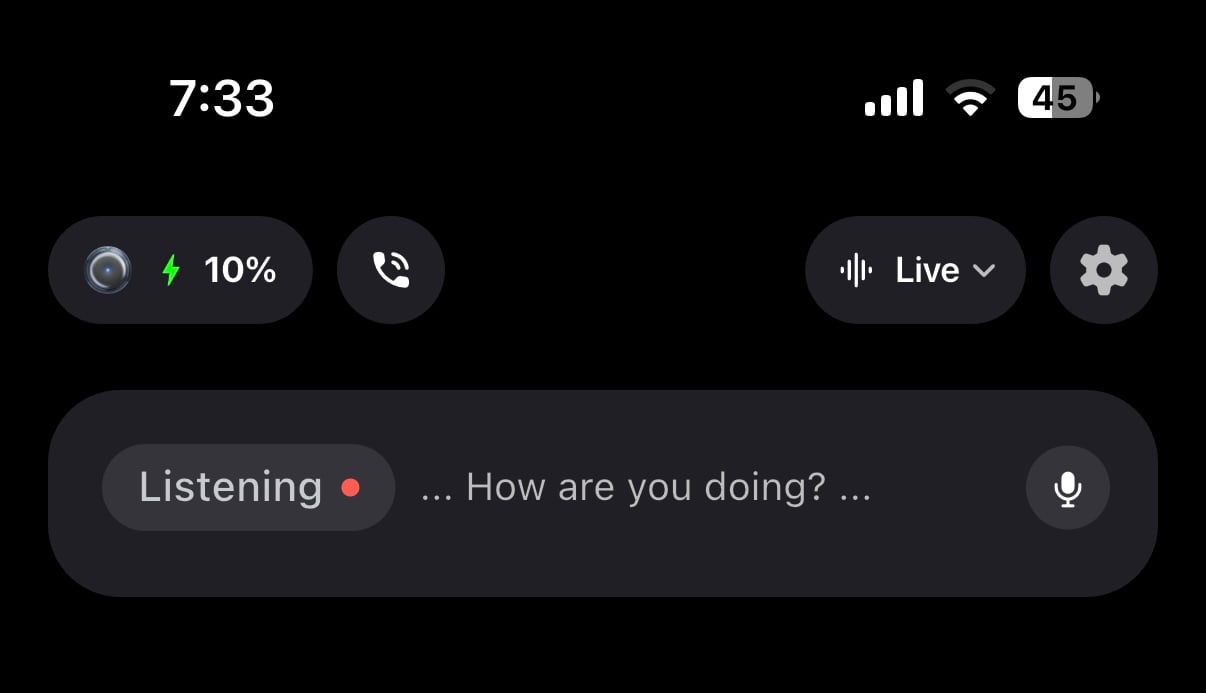
After pairing, test that transcription is working:
* Speak near your Omi device
* You should see transcriptions appear in the app
* If you don't see transcriptions immediately, wait 30+ seconds
## Quick Setup
Make sure your Omi device is charged. When you switch it on, there should be a light indicator.
* Press the button once to turn on the device
* Look for the LED light to confirm it's powered on (blue if connected, red if not yet paired)
Download the official Omi app from your device's app store:
Download for iOS
Download for Android
You can also search for "**Omi AI**" in your app store.
1. Open the Omi app after downloading
2. Follow the in-app instructions to pair your device
3. Wait for the Bluetooth connection to establish
After pairing, test that transcription is working:
* Speak near your Omi device
* You should see transcriptions appear in the app
* If you don't see transcriptions immediately, wait 30+ seconds
 ***
## Button Controls
**Ask a Question**
Tap once to start recording a voice question. Tap again when you're done speaking (or wait 15 seconds). Your answer will appear in Omi chat.
**Quick Action (Configurable)**
Double tap to trigger a quick action. You can choose what it does in **Settings → Device Settings → Double Tap Action**:
* End & save conversation (default)
* Pause / resume recording
* Star the current conversation
**Power Off**
Press and hold for 3 seconds to turn the device off. Press the button once to turn it back on.
***
## Light Indicators
Understanding your Omi's status through LED colors:
| Color | Status |
| ---------------------------- | ------------------------------------------------------------- |
| 🔴 **Solid Red** | Device is on but disconnected from your phone |
| 🔴 **Blinking Red** | Device hasn't synced the time yet — connect it to the Omi app |
| 🔵 **Solid Blue** | Device is on and connected to your phone |
| 🟢 **Blinking Green + Red** | Charging while disconnected |
| 🟢 **Blinking Green + Blue** | Charging while connected |
| 🟢 **Solid Green** | Fully charged (battery ≥ 98%) |
A **blinking red** light just means your Omi hasn't received the current time yet. It gets the time from your phone over Bluetooth, so **connect the device to the Omi app** and it will sync automatically and stop blinking. If it's already connected but keeps blinking, **disconnect and reconnect** it in the app.
***
## Important: Keep the App Running
**Do not kill the app!** Once activated, Omi works in the background. You can minimize the app, but if you force-close it (remove the process), transcription will stop and the device will disconnect.
***
## Features
Real-time speech-to-text
AI-powered recall
Works without internet
Extend with apps
Identifies who's speaking
Ask questions hands-free
***
## Troubleshooting
If you don't see any light or transcription:
1. Your device might need firmware - [install it here](/doc/get_started/Flash_device)
2. Make sure the device is charged
3. Try turning it off and on again
If the issue persists, ask in [Discord](http://discord.omi.me) or contact [help@omi.me](mailto:help@omi.me)
A blinking red light means the device hasn't synced the time yet. Omi gets the current time from your phone over Bluetooth.
1. Open the Omi app and connect to your device — the time syncs automatically and the light stops blinking.
2. If the device is already connected but the light keeps blinking, disconnect and reconnect it in the app.
* Make sure Bluetooth is enabled on your phone
* Try restarting both your phone and the Omi device
* Ensure the device is charged and powered on
* Move closer to the device during pairing
* Wait up to 60 seconds for initial transcription
* Check your internet connection
* Make sure you're speaking clearly near the device
* Try moving the device closer to your mouth
* Ensure the device is running the latest firmware
* Check if there are connection issues causing reconnection loops
* Contact support if battery life is significantly reduced
***
## Need Help?
Get help from the community and team
Browse FAQs and support articles
Create your own Omi integrations
Contact [help@omi.me](mailto:help@omi.me)
***
Choose a different device
***
## Button Controls
**Ask a Question**
Tap once to start recording a voice question. Tap again when you're done speaking (or wait 15 seconds). Your answer will appear in Omi chat.
**Quick Action (Configurable)**
Double tap to trigger a quick action. You can choose what it does in **Settings → Device Settings → Double Tap Action**:
* End & save conversation (default)
* Pause / resume recording
* Star the current conversation
**Power Off**
Press and hold for 3 seconds to turn the device off. Press the button once to turn it back on.
***
## Light Indicators
Understanding your Omi's status through LED colors:
| Color | Status |
| ---------------------------- | ------------------------------------------------------------- |
| 🔴 **Solid Red** | Device is on but disconnected from your phone |
| 🔴 **Blinking Red** | Device hasn't synced the time yet — connect it to the Omi app |
| 🔵 **Solid Blue** | Device is on and connected to your phone |
| 🟢 **Blinking Green + Red** | Charging while disconnected |
| 🟢 **Blinking Green + Blue** | Charging while connected |
| 🟢 **Solid Green** | Fully charged (battery ≥ 98%) |
A **blinking red** light just means your Omi hasn't received the current time yet. It gets the time from your phone over Bluetooth, so **connect the device to the Omi app** and it will sync automatically and stop blinking. If it's already connected but keeps blinking, **disconnect and reconnect** it in the app.
***
## Important: Keep the App Running
**Do not kill the app!** Once activated, Omi works in the background. You can minimize the app, but if you force-close it (remove the process), transcription will stop and the device will disconnect.
***
## Features
Real-time speech-to-text
AI-powered recall
Works without internet
Extend with apps
Identifies who's speaking
Ask questions hands-free
***
## Troubleshooting
If you don't see any light or transcription:
1. Your device might need firmware - [install it here](/doc/get_started/Flash_device)
2. Make sure the device is charged
3. Try turning it off and on again
If the issue persists, ask in [Discord](http://discord.omi.me) or contact [help@omi.me](mailto:help@omi.me)
A blinking red light means the device hasn't synced the time yet. Omi gets the current time from your phone over Bluetooth.
1. Open the Omi app and connect to your device — the time syncs automatically and the light stops blinking.
2. If the device is already connected but the light keeps blinking, disconnect and reconnect it in the app.
* Make sure Bluetooth is enabled on your phone
* Try restarting both your phone and the Omi device
* Ensure the device is charged and powered on
* Move closer to the device during pairing
* Wait up to 60 seconds for initial transcription
* Check your internet connection
* Make sure you're speaking clearly near the device
* Try moving the device closer to your mouth
* Ensure the device is running the latest firmware
* Check if there are connection issues causing reconnection loops
* Contact support if battery life is significantly reduced
***
## Need Help?
Get help from the community and team
Browse FAQs and support articles
Create your own Omi integrations
Contact [help@omi.me](mailto:help@omi.me)
***
Choose a different device